License Management
1. Overview of the Module
1.1 Introduction
The License Management module is where you view and manage your tenant's access entitlement to DataFuse AI. When you register and create your Tenant, DataFuse AI automatically starts a time-limited free trial, so you can begin using the platform immediately—no payment or approval required.
When you are ready to move beyond the trial (for more users, a longer term, or production use), this module is where you request a license and activate it with a product key. Activating the product key applies your license and sets its validity (term and entitlements). The underlying license file (.lic) is then applied automatically in online mode; in offline (on-premise / air-gapped) mode you install it yourself—or let the DataFuse AI support team install it for you.
At any moment, License Management tells you:
- What access you have right now — trial or full license, plus type and mode.
- How much is left — days remaining and how many user seats are in use.
- How to get more — request a license/offer change, then activate it.
1.2 Why is it Important?
Significance:
Your license governs whether—and how much—your tenant can use every other module. License Management makes that status transparent and gives administrators a clear, self-service path from the trial to a fully activated license, so teams are never blocked without knowing the next step.
Problems it Solves:
- No surprise lockouts: A live countdown and an "expiring soon" banner warn you before the trial or license ends.
- Self-service requests: Administrators request the right user limit and duration without leaving the platform.
- Clear entitlement visibility: Everyone with access can see the user limit, usage, validity dates, and days remaining.
- Online or offline activation: A product key activates your license and its validity. In online mode the license file is applied automatically; in offline mode it is installed manually or by DataFuse AI support.
1.3 Key Features in the Module
Feature 1: Automatic Trial & Countdown
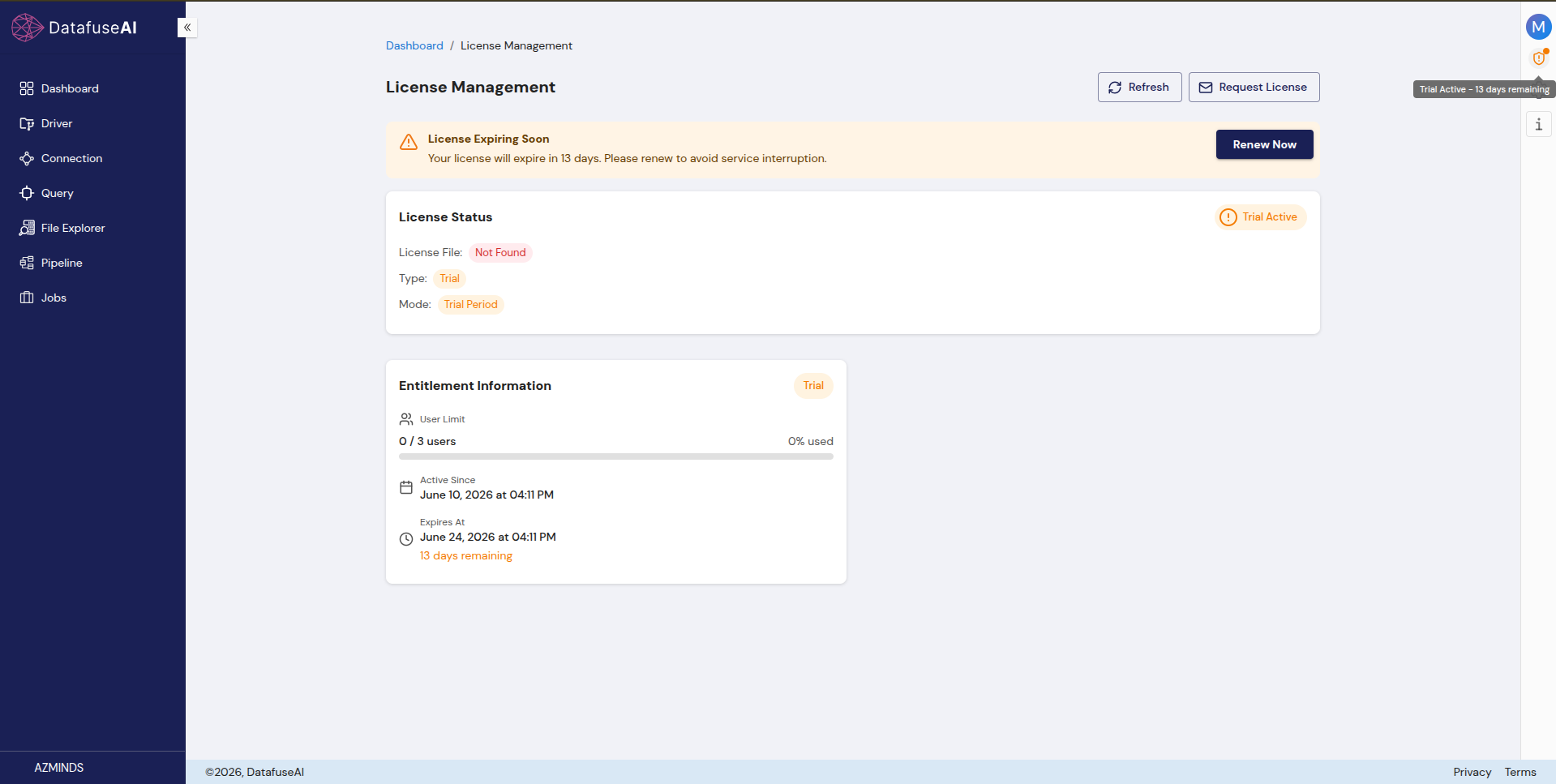
Starts a trial automatically on registration and shows the remaining days (for example, the License/shield icon displays "Trial Active – 13 days remaining").
Feature 2: License Status at a Glance
The License Status card shows whether a license file is present, the Type (e.g., Trial), and the Mode (e.g., Trial Period).
Feature 3: Entitlement Information
The Entitlement Information card shows the User Limit (used / total with a usage bar), Active Since, Expires At, and days remaining.
Feature 4: Request License / Offer Change
A built-in request form lets an administrator ask for a specific user limit and duration, with optional notes.
Feature 5: Product-Key Activation (Online & Offline)
A product key (XXXX-XXXX-XXXX-XXXX) activates your license and sets its validity. The license file (.lic) is then applied automatically in online mode, or installed manually (or by DataFuse AI support) in offline mode.
Feature 6: Renewal Reminders
An expiring-soon banner with a Renew Now action helps you avoid any interruption to scheduled work.
1.4 Real-World Usage
- Evaluation: A new team registers, receives a 14-day trial for up to 3 users, and builds a proof-of-concept.
- Going to production (online): The administrator submits a Request License / Offer Change for 20 users over 5 years, receives a product key, and activates it—the license file is applied automatically.
- Air-gapped / on-premise (offline): After activating the product key, the tenant installs the
.licfile via Install License File—or has the DataFuse AI support team install it. - Renewal: Two weeks before expiry, the "License Expiring Soon" banner appears and the administrator renews.
2. Module Concepts
2.1 License
A License is the entitlement that grants your tenant access to DataFuse AI for a defined period and user limit. Every tenant always has one active license context—either a trial or a full license.
2.2 Trial
A Trial is granted automatically when you register your tenant.
- Duration: A limited period that begins at registration—14 days (for example, Active Since June 10, 2026 → Expires At June 24, 2026).
- User Limit: A small default allocation (for example, 3 users).
- License File: Shown as Not Found during the trial—this is expected, because no license file has been installed yet.
- Cost: Free; no payment details required.
The trial is the default state immediately after account setup. To continue beyond it—or to raise the user limit and term—request a license and then activate it.
2.3 License Status
The License Status describes the current entitlement:
- License File: Found or Not Found (whether a
.licfile is installed). - Type: The license type (for example, Trial).
- Mode: The operating mode (for example, Trial Period).
2.4 Entitlements
Entitlements are the measurable limits attached to your license, shown in the Entitlement Information card:
- User Limit: Seats available and how many are in use (e.g., 0 / 3 users, 0% used). This caps how many users you can invite.
- Active Since: When the current license/trial began.
- Expires At: When it ends.
- Days Remaining: Time left before expiry.
2.5 Offer
An Offer is the commercial package your license is based on. It is described on your product-key document and typically includes:
- Offer ID
- Description (e.g., "5-year subscription – 50 users")
- Duration (e.g., 5 years)
- User Limit (e.g., 50 users)
2.6 Product Key
A Product Key is a unique code—formatted XXXX-XXXX-XXXX-XXXX—issued to your tenant after a license request is fulfilled. It is delivered on a "Product Key for <tenant>" document alongside the License Serial, Tenant, and Offer details. Entering this key is what activates your license and establishes its validity—the term and entitlements (user limit, expiry) defined by the offer.
Keep your product key secure. Anyone with the key can activate the associated license for your tenant.
2.7 License File (.lic)
A License File is a .lic file (for example, LIC-20260610-CABDCE.lic) that holds your tenant's activated license. In online mode it is applied automatically once you activate your product key—you don't need to install anything. In offline (on-premise / air-gapped) mode, the file is installed manually via Install License File, or the DataFuse AI support team can install it for you. The license file complements the product key—the product key remains what determines activation and validity.
2.8 License Request / Offer Change
A License Request / Offer Change is a structured submission asking the DataFuse AI team to issue or change your license. It captures the desired user limit, duration, and optional notes, and is recorded in the Audit Log as a LICENSE REQUEST SUBMITTED event.
2.9 License States
| State | Meaning |
|---|---|
| Trial Active | Trial is running within its user limit and period. |
| Expiring Soon | The trial or license is within its final window; renew is recommended. |
| Expired | The period has ended; access becomes restricted until you activate/renew. |
| Active | A full license is installed and valid. |
3. Accessing License Management
You can open License Management in either of these ways:
- Click the License / shield icon in the top-right corner of the application. It surfaces your trial countdown (for example, a tooltip reading "Trial Active – 13 days remaining").
- From the Dashboard, follow the breadcrumb Dashboard → License Management.
By default the Primary Tenant Owner (SuperAdmin) manages licensing. Other users can be granted access through a group permission. Activation and requests change the whole tenant's entitlement, so access is usually limited to administrators.
4. Module UI Components and User Actions
4.1 Page Header
At the top of the page you'll find:
- Refresh: Re-reads the current license status (use it after activating a key or installing a file).
- Request License: Opens the Request License / Offer Change dialog.
4.2 "License Expiring Soon" Banner
When your trial or license is near its end, an amber banner appears:
License Expiring Soon — Your license will expire in N days. Please renew to avoid service interruption.
It includes a Renew Now button that starts the renewal/request flow.
4.3 License Status Card
Displays a status badge (e.g., Trial Active) plus:
- License File: Found / Not Found
- Type: e.g., Trial
- Mode: e.g., Trial Period
4.4 Entitlement Information Card
Displays your entitlement badge (e.g., Trial) plus:
- User Limit: used / total with a usage bar and percentage.
- Active Since and Expires At dates.
- Days remaining.
4.5 Activation & Request Dialogs
From License Management you can open the following dialogs (covered step-by-step in Crucial Guides):
- Request License / Offer Change — request a new user limit and duration.
- Activate Product Key — enter your product key to activate the license and set its validity.
- Install License File — upload a
.licfile (offline mode only; online mode applies it automatically).
5. Standard User Flow (Trial → Active License)
5.1 Start on a Trial (Automatic)
After you register your tenant, the 14-day trial begins automatically. Build engines, connection profiles, and pipelines right away.
5.2 Review Your Status
Open License Management to confirm your Type, Mode, User Limit usage, and days remaining.
5.3 Request a License / Offer Change
Click Request License, choose a user limit and duration, add optional notes, and submit.
5.4 Receive Your Product Key
The DataFuse AI team fulfils the request and sends a Product Key document containing your License Serial, Tenant, Offer details, and the key itself. (Offline deployments also receive the corresponding .lic license file.)
5.5 Activate the Product Key
Activate your product key to apply the license and set its validity. In online mode, the license file is then applied automatically. In offline mode, install the .lic file (or have DataFuse AI support install it). Your entitlements (user limit, expiry) update accordingly.
5.6 Verify & Renew
Click Refresh to confirm the new status. Ahead of expiry, use the Expiring Soon → Renew Now flow to keep access uninterrupted.
6. Crucial Guides for Users
6.1 Checking Your Trial / License Status
- Click the License / shield icon (top-right) or go to Dashboard → License Management.
- Read the License Status card (Type, Mode, License File) and the Entitlement Information card (user limit usage, Active Since, Expires At, days remaining).
- If you're close to the user limit or expiry, request a license.
6.2 Requesting a License / Offer Change
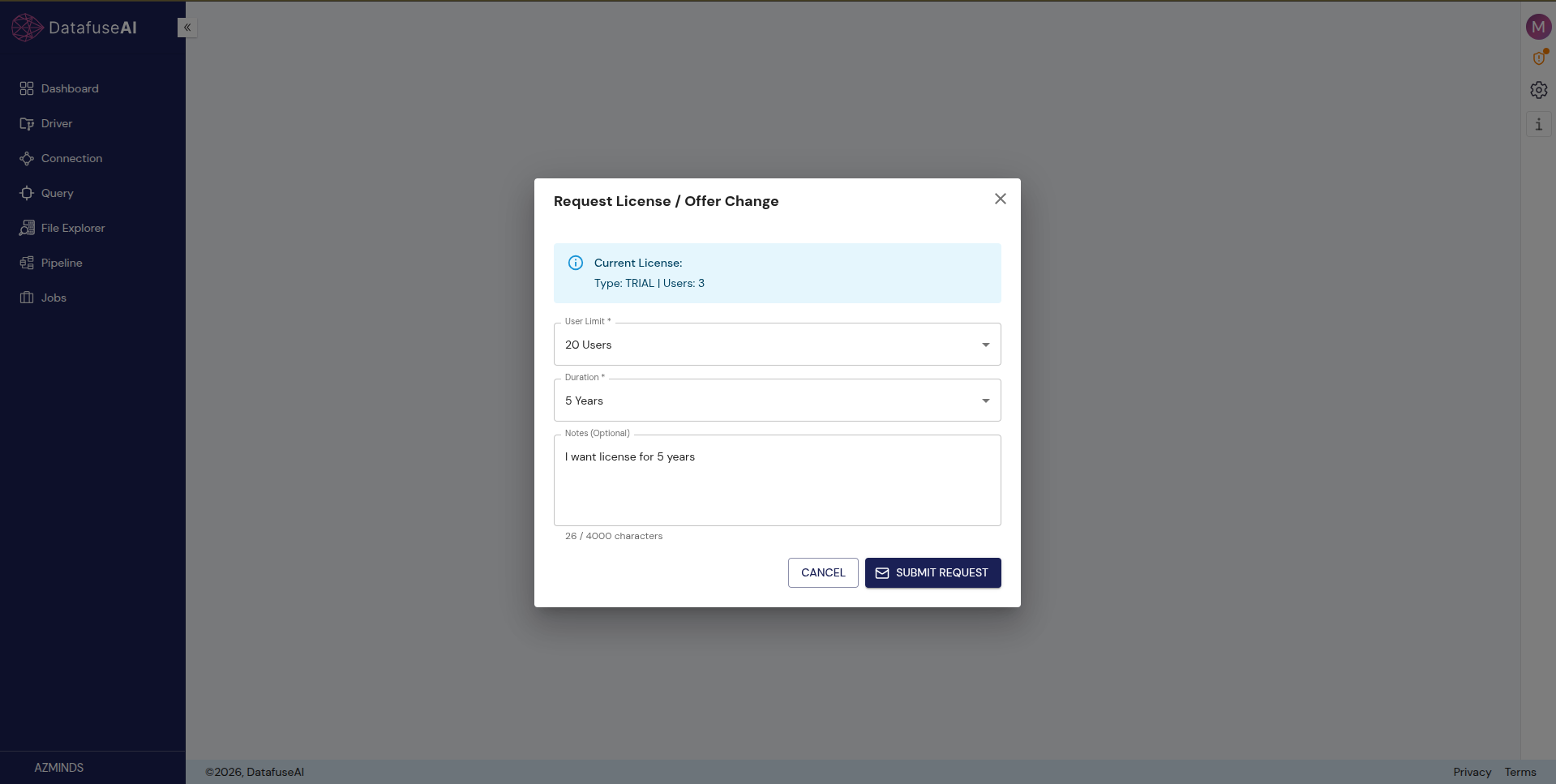
- Click Request License (or Renew Now on the expiring banner).
- Review the Current License summary (e.g., Type: TRIAL | Users: 3).
- Choose a User Limit (e.g., 20 Users).
- Choose a Duration (e.g., 5 Years).
- Optionally add Notes (up to 4000 characters), e.g., "I want a license for 5 years."
- Click Submit Request.
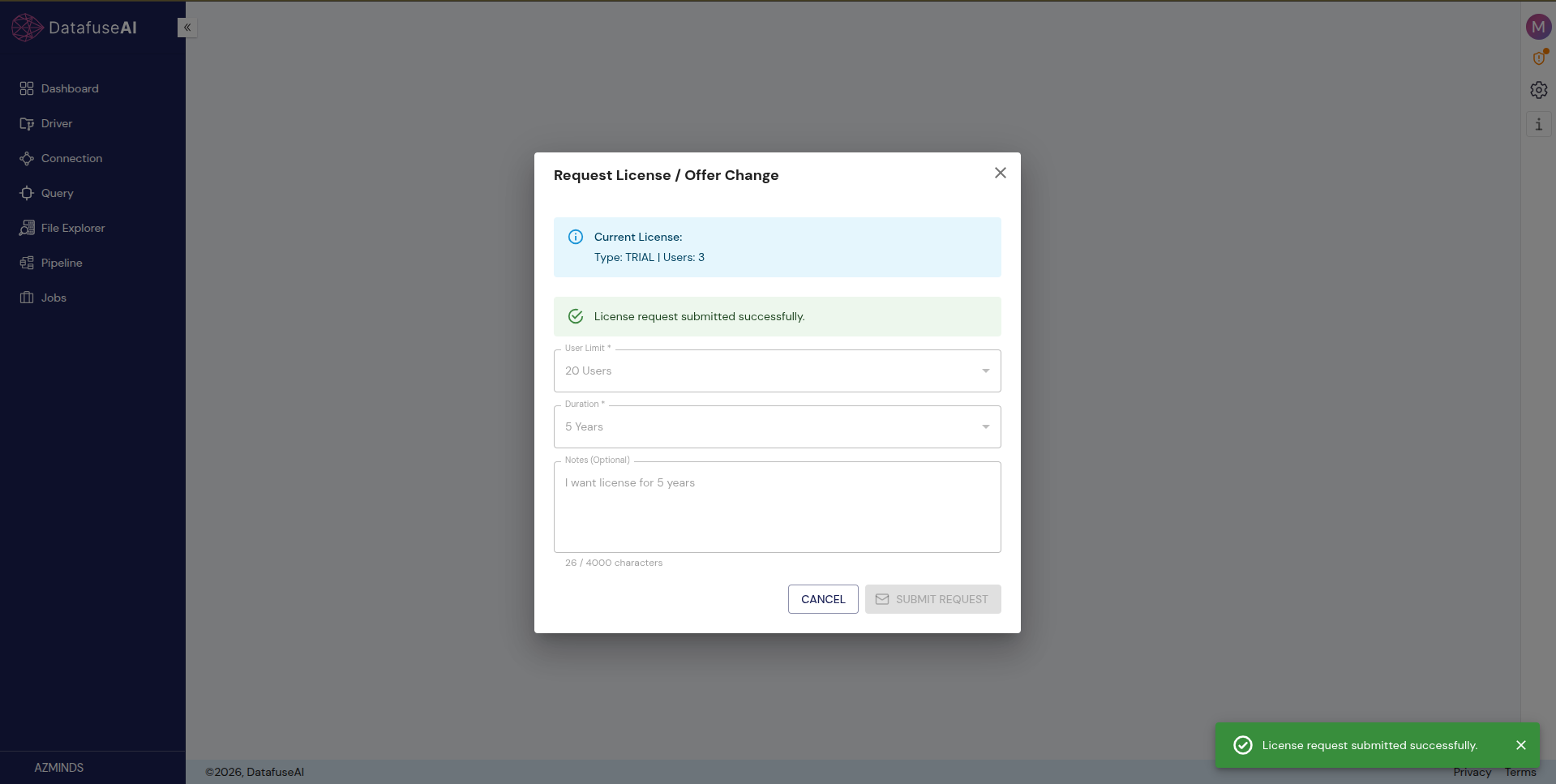
You'll see a confirmation—"License request submitted successfully."—and the action is recorded in the Audit Log as LICENSE REQUEST SUBMITTED.
6.3 Receiving Your Product Key
After your request is processed, you receive a "Product Key for <tenant>" document.
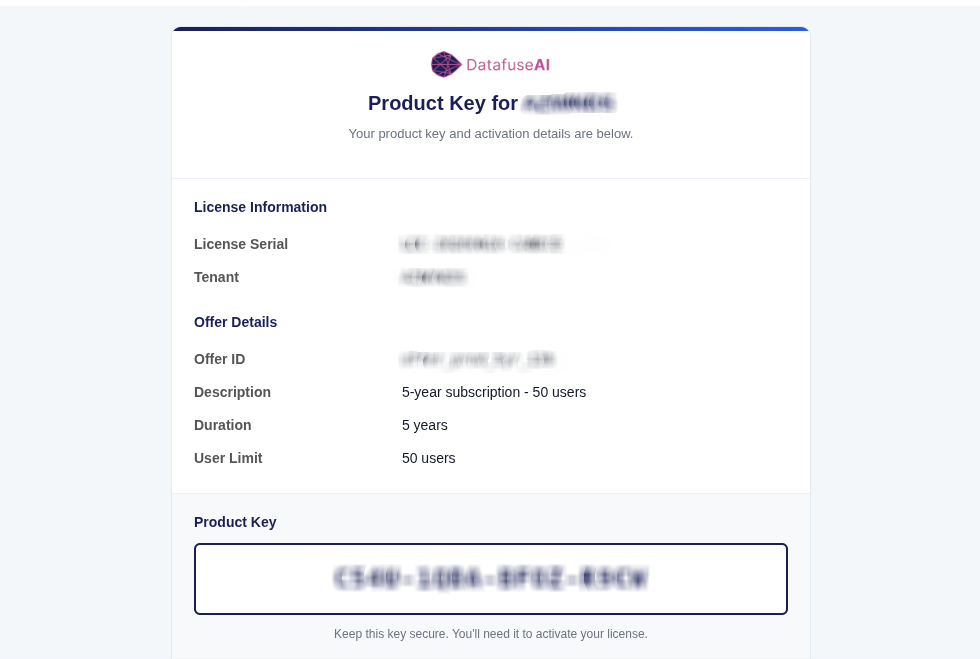
It contains:
- License Information: License Serial, Tenant.
- Offer Details: Offer ID, Description (e.g., 5-year subscription – 50 users), Duration, User Limit.
- Product Key: in the format
XXXX-XXXX-XXXX-XXXX.
Store this document securely—you'll need the product key to activate your license.
6.4 Activating a Product Key
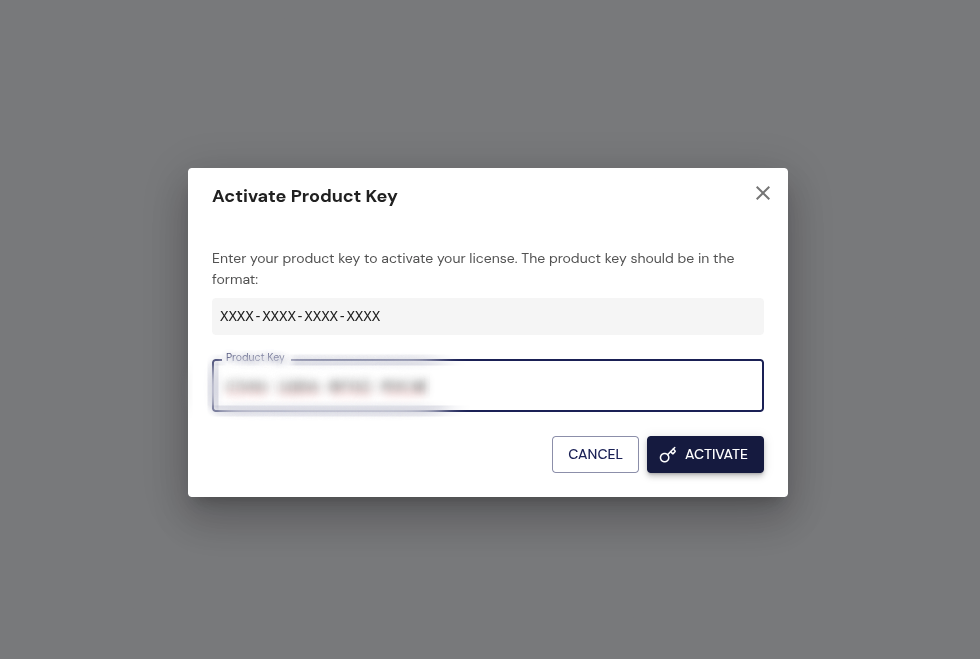
- From License Management, open Activate Product Key.
- Enter your key in the format
XXXX-XXXX-XXXX-XXXX. - Click Activate.
- On success, your entitlements update and the Audit Log records a
KEY ACTIVATION SUCCESSevent (e.g., "Product key activated for tenant …"). An entitlement change may also appear asENTITLEMENT UPGRADE(updatinguser_limit,expires_at). - Click Refresh to confirm the new Type, User Limit, and Expires At.
Activating the product key is the step that licenses your tenant and sets its validity. In online mode, the license file is applied automatically—no separate install is needed. In offline mode, continue with Installing a License File (or ask DataFuse AI support to install it).
6.5 Installing a License File (.lic)
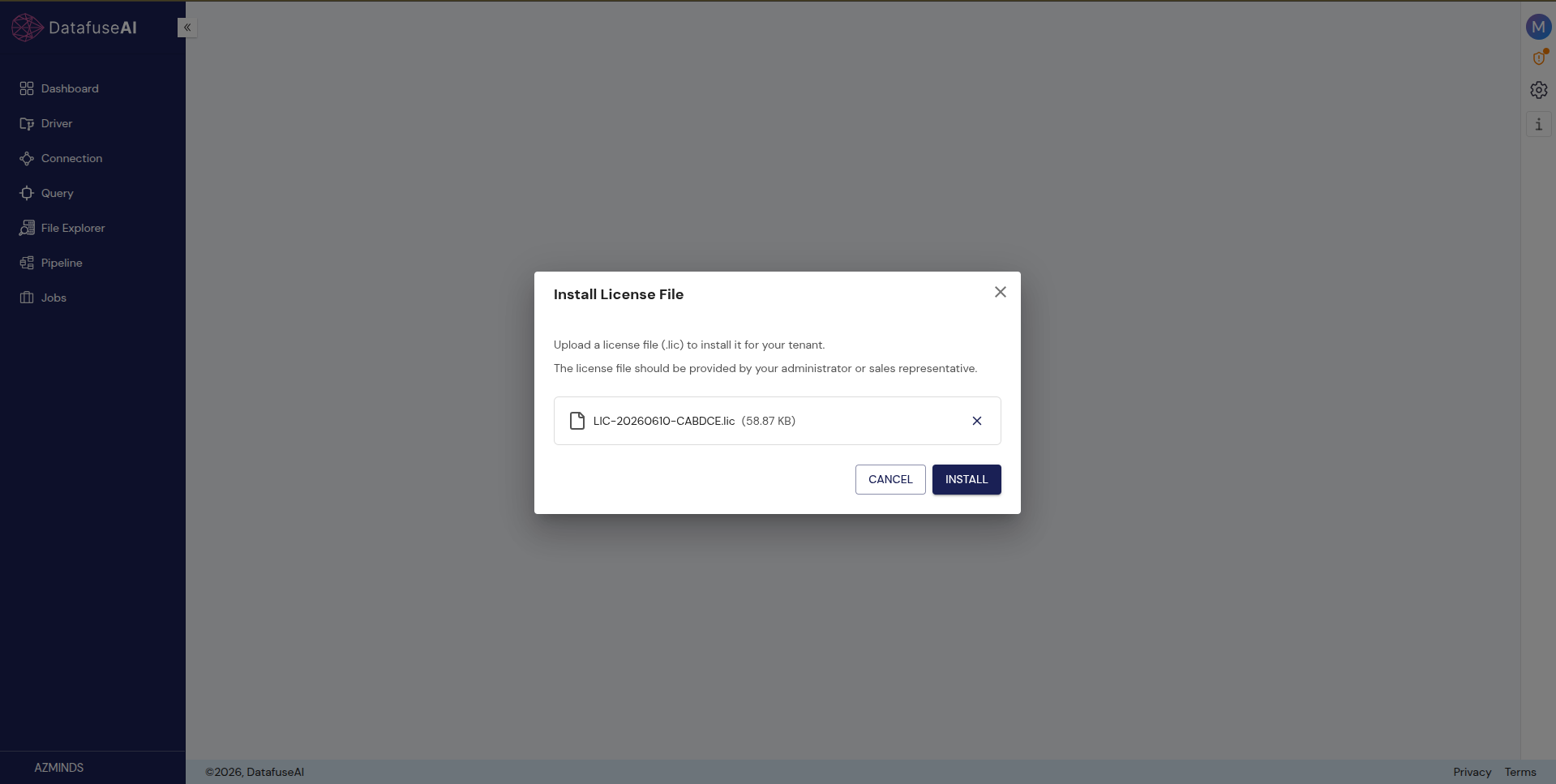
This step applies only in offline (on-premise / air-gapped) mode. In online mode, the license file is applied automatically after you activate your product key—you can skip this. In offline mode you can install the file yourself, or ask the DataFuse AI support team to do it for you.
- From License Management, open Install License File.
- Upload a license file (
.lic)—for example,LIC-20260610-CABDCE.lic. The file should be provided by your administrator or sales representative. - Click Install.
- After installation, License File shows Found and your entitlements reflect the license. Click Refresh to confirm.
6.6 Renewing Before Expiry
- Watch for the License Expiring Soon banner and the days-remaining indicator.
- Click Renew Now (or Request License), adjust the user limit/duration if needed, and submit.
- When you receive the renewed key or file, activate/install it as above.
7. What Happens When the Trial or License Expires
- Your data and configurations are retained. Connection profiles, pipelines, jobs, and queries are not deleted.
- Access becomes restricted. Once expired, the tenant moves to a limited state—scheduled jobs may be paused and new operations may be blocked.
- Restore access by requesting a renewal and activating the new product key. (In offline mode, also install the new
.licfile or ask DataFuse AI support.)
8. Common Troubleshooting in the Module
Issue 1: License File shows "Not Found"
- Cause: You're on a trial, or you're in offline mode and the
.licfile hasn't been installed yet. - Solution: During the trial this is expected. After activating a product key in online mode, the file is applied automatically—click Refresh. In offline mode, install it via Install License File or ask DataFuse AI support.
Issue 2: My product key won't activate
- Cause: The key was mistyped, or it doesn't match the format
XXXX-XXXX-XXXX-XXXX. - Solution: Re-enter the key exactly as shown on your Product Key document (check for
0/Oand1/Iconfusion). If it still fails, confirm the key was issued for your tenant and contact support.
Issue 3: I can't invite more users
- Cause: You've reached your User Limit (e.g., 3 of 3 used on a trial).
- Solution: Check usage in Entitlement Information, then submit a Request License / Offer Change for a higher user limit and activate the resulting license.
Issue 4: My request was submitted but nothing changed
- Cause: A request is a submission; entitlements change only after you activate the issued product key.
- Solution: Wait for your Product Key, then activate it and click Refresh. (In offline mode, also install the
.licfile or ask DataFuse AI support.)
Issue 5: The status looks stale after activating
- Cause: The page hasn't re-read the license yet.
- Solution: Click Refresh on the License Management header.
8.1 FAQ
Do I need a credit card to start the trial?
No. The trial activates automatically on registration—no payment details required.
How long is the trial and how many users?
14 days from registration, with a small default user limit (for example, 3 users). Your exact figures are shown in Entitlement Information.
What's the difference between a product key and a license file?
The product key (XXXX-XXXX-XXXX-XXXX) is what activates your license and sets its validity—you always activate with it via Activate Product Key. The license file (.lic) is the artifact that carries the activated license: in online mode it's applied automatically, and in offline mode you install it via Install License File (or DataFuse AI support installs it). In short: the product key activates; the license file is applied automatically online or installed manually offline.
Will I lose my work when the trial/license expires?
No. Your work is retained; access is restricted until you activate or install a license.
Who can request and activate a license?
The SuperAdmin by default, plus any user whose group has the licensing permission.
9. Conclusion of the Module
9.1 Summary
License Management turns access into a transparent, self-service experience. A 14-day trial starts the moment you register; the License Status and Entitlement Information cards tell you exactly what you have and how much remains; and a built-in Request License / Offer Change flow—followed by product-key activation (with the license file applied automatically online, or installed for offline deployments)—takes you from evaluation to a fully licensed tenant. Expiry reminders and one-click renewals keep your data operations uninterrupted.
9.2 Best Practices
- Check status early during the trial so you know when to request a license.
- Request the right user limit and duration based on your real team size and term.
- Keep your product key and
.licfile secure. - Click Refresh after activating/installing to confirm the new entitlements.
- Renew before expiry to avoid pausing scheduled jobs and pipeline runs.
10. What's Next After This Module?
10.1 Related Modules
- Tenant, User & Groups: The user limit you manage here caps how many users you can invite.
- Audit Log: License requests, key activations, and entitlement upgrades are all recorded in the audit trail.
- Data Governance: Deployment options tied to your license support your compliance posture.
10.2 Next Steps
- New here? Start with Account Sign Up & Setup to create your tenant and trigger your trial.
- Ready to build? Follow the Quick Start Guides.
- Need full access? Use Request a License / Offer Change, then activate your product key. In offline deployments, also install your license file.